







Window Layout
Below is a screenshot of the Watson Graphics Lab. As you will note, the major sections of the lab are numbered and explained below the image.
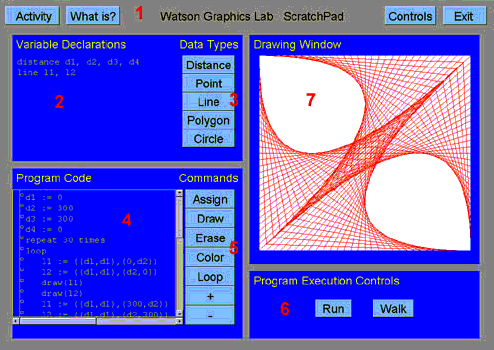
- Watson Control Bar - The common Watson control bar for all applications. This bar contains all the functions to run an activity and get important information about the lab.
- Variable Declaration - This windows contains all variables used in the program.
- Data Types - These buttons each represent one of the five different
data types recognized by Watson Graphics Language.
- Distance - An object of type distance is a variable composed of the digits 0 through 9. They may not contain commas, decimal points, or any other special characters. Distances can vary from 0 to 999, inclusive. Distance variables are always named beginning with the letter “d” followed by one or more digits
- Point - An object of type point specifies a location using two distances: a horizontal, X, distance and a vertical, Y, distance. These distances are measured from the opposite axis: the X distance from the Y axis and the Y distance from the X axis. Constants of type point are expressed as these two distances, first X, then Y, separated by a comma and enclosed in parentheses.
- Line - An object of type line specifies a straight line segment between two points. Line constants are composed of two points, separated by a comma and enclosed in parentheses.
- Polygon - The object of type polygon is a closed, multi-sided figure. Polygons are expressed a list of points separated by commas and enclosed in parentheses. These points are connected together with line segments to form a closed figure.
- Circle - An object of type circle specifies a circle using a center point and radius. A value of type circle is composed of a point and a distance, separated by a comma and enclosed in parentheses
- Program Code - This window holds your actual program, and lets you edit the code held there.
- Commands - These buttons each represent one of the seven different commands recognized by Watson Graphics Language. Each time one of these buttons are pressed a corresponding line of code is added in the Program Code window.
- Program Execution Controls - These buttons are used by Watson Graphics
Lab to execute or step through the program.
- Run - This button will execute the program sequentially until the program finishes.
- Walk - This button will step through your program one line at a time allowing to study exactly what happens upon execution of each line of code.
- Drawing Window - This windows operates in one of two mode, interactive mode and output mode.